Author: Daniel Greene

  • WordPress.com themes that display author bylines

    Update:

    This post is superseded by Blog 2014: Free WordPress themes that display bylines.


    Original Post:

    (You can skip to my findings if you like.)

    To get the best search results for your blog, you will want to verify authorship with Google. Google requires web pages to have bylines such as “By Daniel Greene” or “Posted by Daniel Greene” to verify authorship. If you want to verify authorship of your whole blog, you need to have your byline on the front page. When I went to sign up for authorship, Google showed me that some of my blogs did not show my byline. I soon realized it was due to the themes on each blog. I found that by changing the theme to one that showed my byline, I was able to get Google to verify my authorship. That’s when I started trying out various themes to see which ones showed bylines.

    After some random trials, I decided to search for existing knowledge. One blog post titled WordPress.com Changes Bylines for Authors said of WordPress.com, “bylines will only display now if there are at least two authors who both have at least one published post in the blog” (timethief, 2012). The author cited a WordPress.com News post titled More Custom Headers, Color Schemes, & Theme Improvements (Steward, 2011). I read it and I saw nothing in that post about displaying bylines. Another blog post titled Author and profile displayed or not (Panos, 2009, 2011) had a detailed list of themes up to December 2011. Since timethief’s findings did not match my own, and since Panos’ list did not include any themes from 2012 — a prolific year for the WordPress.com theme team! — I compiled a list of my own.

    The way I found out which themes showed bylines and which did not was to preview themes on my main blog, danielgreene.com. Starting on the front page, I looked for a byline at the top of the first post on the front page and at the bottom of the post where some of the themes put the byline. When I found no byline at either the top or bottom of the first post on the front page, I clicked on the title of the second post to see if the byline showed on the post page. In most cases, themes that didn’t show bylines on the front page did show bylines on the post page, but a few themes showed bylines nowhere. Here is where the (free, not Premium) WordPress.com themes of 2012 (up to September) display and don’t display bylines:

    Front page and post page

    • Able
    • Grisaille
    • Ideation & Intent
    • Origin
    • Blaskan
    • San Kloud
    • Retro-fitted

    Post page only

    • Sight
    • Ever After
    • Lovebirds
    • Balloons
    • The Columnist
    • Yoko
    • Skylark
    • Oxygen
    • Ari
    • Sunspot
    • Sundance

    Neither front page nor post page

    • Mixfolio
    • Triton Lite
    • Twenty Twelve
    • Vintage Camera

    Please comment if this was helpful or if you got different results than I did.
  • This Labor Day weekend I remember fondly…

    This Labor Day weekend I remember fondly the week after my first Labor Day weekend with Andy, in 2003. We had met on Memorial Day weekend, and after we stayed together past Labor Day weekend I thought, “Good! So it wasn’t just a summer fling.”

  • My Galaxy Tab 10.1 got Android 4.04

    My Galaxy Tab 10.1 got Android 4.04 last night as I read they might. It’s customized, but nice.

  • Student teaching and thesis writing my last quarter in grad school

    I just started co-teaching an Introduction to Interpreting class at Phoenix College yesterday. It’s a hybrid course, so I’ll be doing both onsite teaching and online teaching. Luckily, I’ve had experience with both kinds of teaching, especially since doing my teaching practica in three different courses last spring at Western Oregon University (WOU), where I taught in the course management system (Moodle) and via videoconference (Skype and Google Hangout).

    The next five weeks are a break before my last quarter of grad school, and I’m taking this time to write the first draft of my master’s thesis on vague language (VL). Sometimes I think I need to keep writing this blog so it doesn’t fade into obscurity, and other times I think I’d better let it wait and settle for the delayed gratification of publishing my thesis. I suppose balancing both wouldn’t hurt; in fact, blogging regularly might help writing my thesis regularly and vice versa.

    In the course I’m co-teaching, we’re using the books Sign Language Interpreting: Exploring Its Art and Science (Stewart, Schein, & Cartwright, 1998) and So You Want to Be an Interpreter (Humphrey & Alcorn, 2007). In writing my thesis, I’m using the book Writing Your Journal Article in Twelve Weeks: A Guide to Academic Publishing Success (Belcher, 2009) as a guide.

  • Ever forget an assignment? Make it less likely with automatic agenda emails.

    I hate to admit it, but there have been those mortifying times when I’ve forgotten I had a job to get to. It’s easy to follow a schedule when it’s the same every day, but when you’re a community interpreter and your schedule changes every day, you might need a little help.

    Lately, some of the agencies I work for have started sending out automatic agenda reminders via email, such as “Here is your schedule for this week” or “Here is your schedule today.” These reminder emails are very helpful — so helpful I was about to ask an agency who doesn’t send them to send them. I rethought that, though, because I had forgotten a job with them that week and I didn’t want it to come across as, “Well, it would help if you sent me a reminder.” So I did some searching and found that I could set up my own email reminders in my Google calendar. Here’s how:

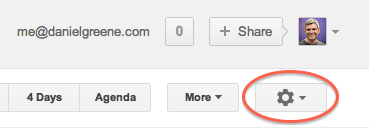
    In your Google calendar, go to Settings. Currently the way to do this is to click on the gear icon in the top right corner of the page. When in Settings, click the Calendars tab from the tabs toward the top left of the page (where you see General, Calendars, Mobile Setup, Labs). For your work calendar, look for the Notifications heading just right of the center of the Calendar line (where you see CALENDAR, SHOW IN LIST, NOTIFICATIONS, SHARING). Follow the Notifications link for your work calendar. Scroll to the bottom of the page where it says, “Daily agenda: Receive an email with your agenda every day at 5am in your current time zone.” Check the box next to Email and/or SMS, and you’re done! You will now get your very own agenda reminders at the crack of dawn.

    Go forth and serve thy Deaf and hearing consumers!

    P.S. I know not everyone uses Gmail or Google Apps, but maybe the calendaring program you use does this too. If not, maybe you should get with a program that does.